
Transform and gizmos
Once one or more objects are selected, you can transform them with the 3D gizmos in the scene or by editing values in the Transform section of the properties panel.
Gizmos
Section titled “Gizmos”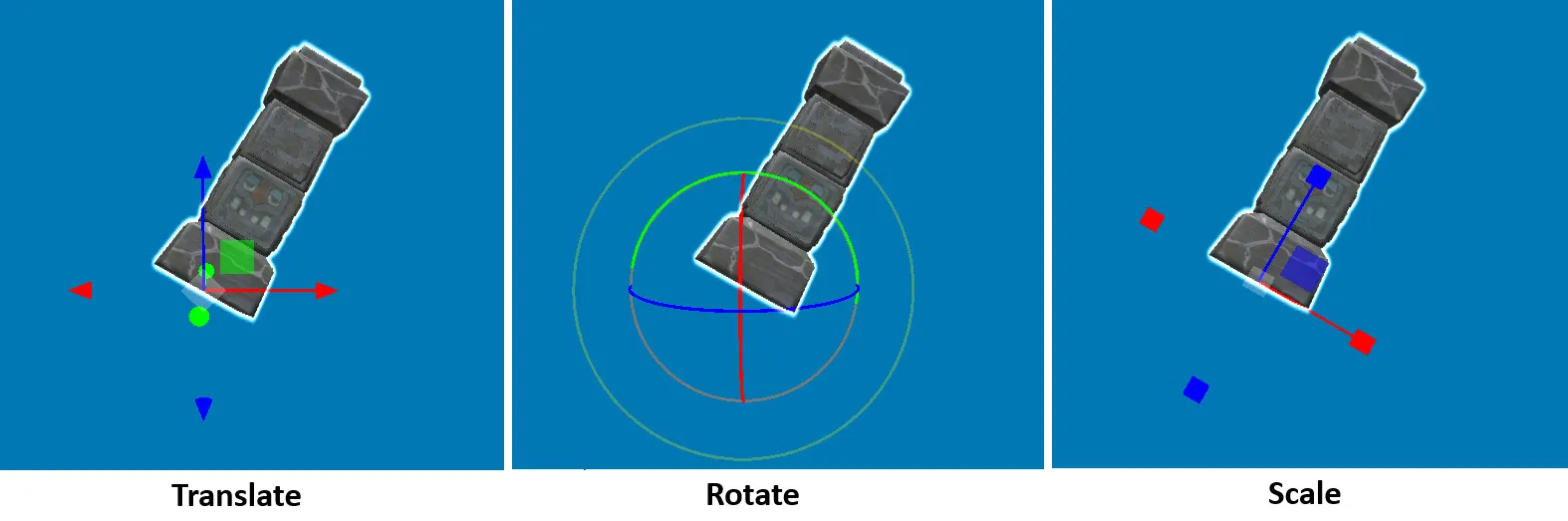
| Mode | Shortcut |
|---|---|
| Translate | Ctrl+E |
| Rotate | Ctrl+R |
| Scale | Ctrl+T |
| Toggle world / object space | Ctrl+G |
Drag a color handle to change one axis; drag a color square to move on a plane. Drag the central gizmo to move in the same plane as the camera (you can hide it in Editor settings).
World space and object space
Section titled “World space and object space”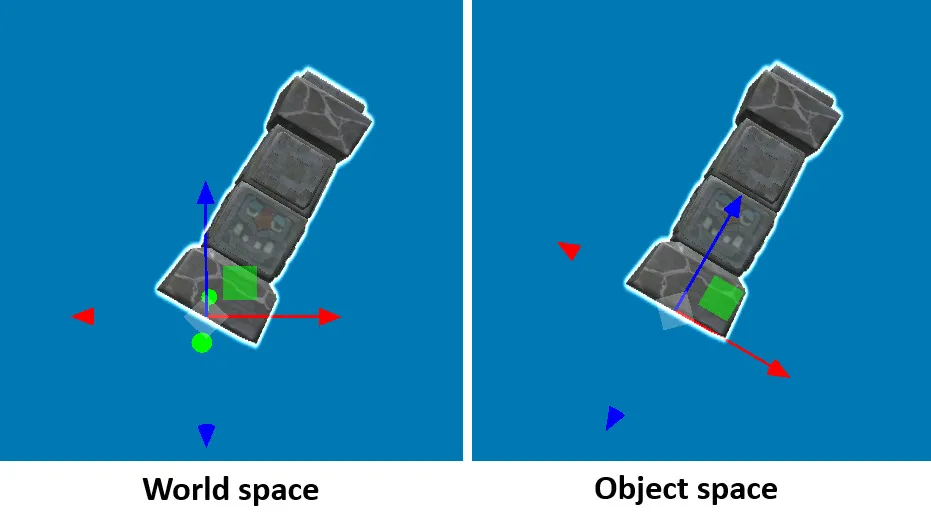
- In world space, the gizmo’s up arrow always points to the sky, whatever the object’s rotation.
- In object space, the gizmo follows the object’s own rotation.
Snapping and alignment
Section titled “Snapping and alignment”- Grid snapping. Hold Shift while translating or rotating with a gizmo to snap to the grid. The increment is set in Editor settings and defaults to the size of a crate.
- Crate alignment. Press Left Alt to align the selected crates with the closest crate in the scene, which makes stacks and rows tidy.
The Transform panel
Section titled “The Transform panel”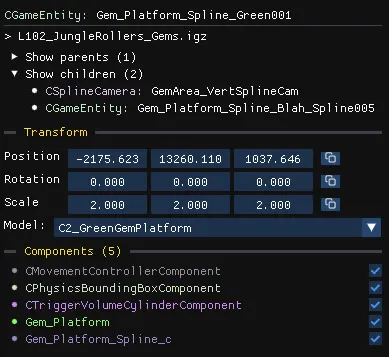
Position, rotation and scale of the selected object, with rotation in degrees.
- Click and drag a field to change it like a slider. Hold Shift for a faster change, or Alt for more precise adjustments.
- Double-click a field to type a value.
- Click the icon at the right of a row to copy or paste the whole row between objects.
Ctrl+Z undoes selection, move, rotate and scale actions. Ctrl+Shift+Z redoes them. Other actions cannot be undone yet, see Undo and backups.