
Quickstart: create your first level
This walkthrough takes you from a fresh editor install to playing your own level in the game. It only uses the basics; every step links to the detailed guide.
-
Create an empty level.
In the main menu, click
New Level.... For the base level, selectnone. This unlocks three additional options: pick the Lighting and the Music of any existing level, and the Mode (Crash 1, 2 or 3), which decides how the level starts and ends.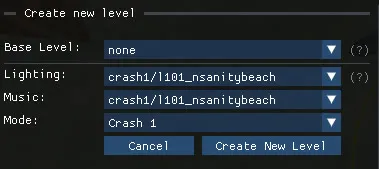
The empty template already contains a camera, a light source, a music theme, a level start and end, a platform with collisions and the most common crates. Details in Create a new level.
-
Look around.
The level opens in the scene view. Move with W A S D, hold the right mouse button to rotate the camera, hold Shift to move faster, use Q and E to move down and up.
-
Add a few crates.
Point the small dot at the centre of the screen where you want the crate, then right-click and pick
New Crateand a crate type. New objects are placed where you are aiming. Hold Left Alt to align the selected crate with the closest one. The whole catalogue is in Quick-access menu. -
Move things around.
Left-click an object to select it and show the 3D gizmo. Drag the arrows; hold Shift while dragging to snap to the grid. Ctrl+E/R/T toggles between translation, rotation or scale mode. Ctrl+Z undoes a move. See Transform and gizmos.
-
Name your level.
Open the Level settings panel in the top left and fill in the Name and Hint shown when the level loads. You can also update the times for the Time trial. See Level settings.
-
Save and play.
Press Ctrl+S to save, then click the Play button in the top-right corner of the editor. Or press Ctrl+L to back up, save and launch in one go. The game must not be running already.

Steam shows a confirmation popup on every launch; you can turn it off with
File → Skip Steam popupin the main menu. -
Share it.
Use
File → Remove unused files, thenFile → Compress & Saveto produce a smaller.pakarchive, then share that file. Players open it using the Play Custom Level button. See Play, save and publish.