
Splines
A CSplineComponent represents a path made of positions and rotations. Splines are used for camera paths and the movement of enemies and platforms.
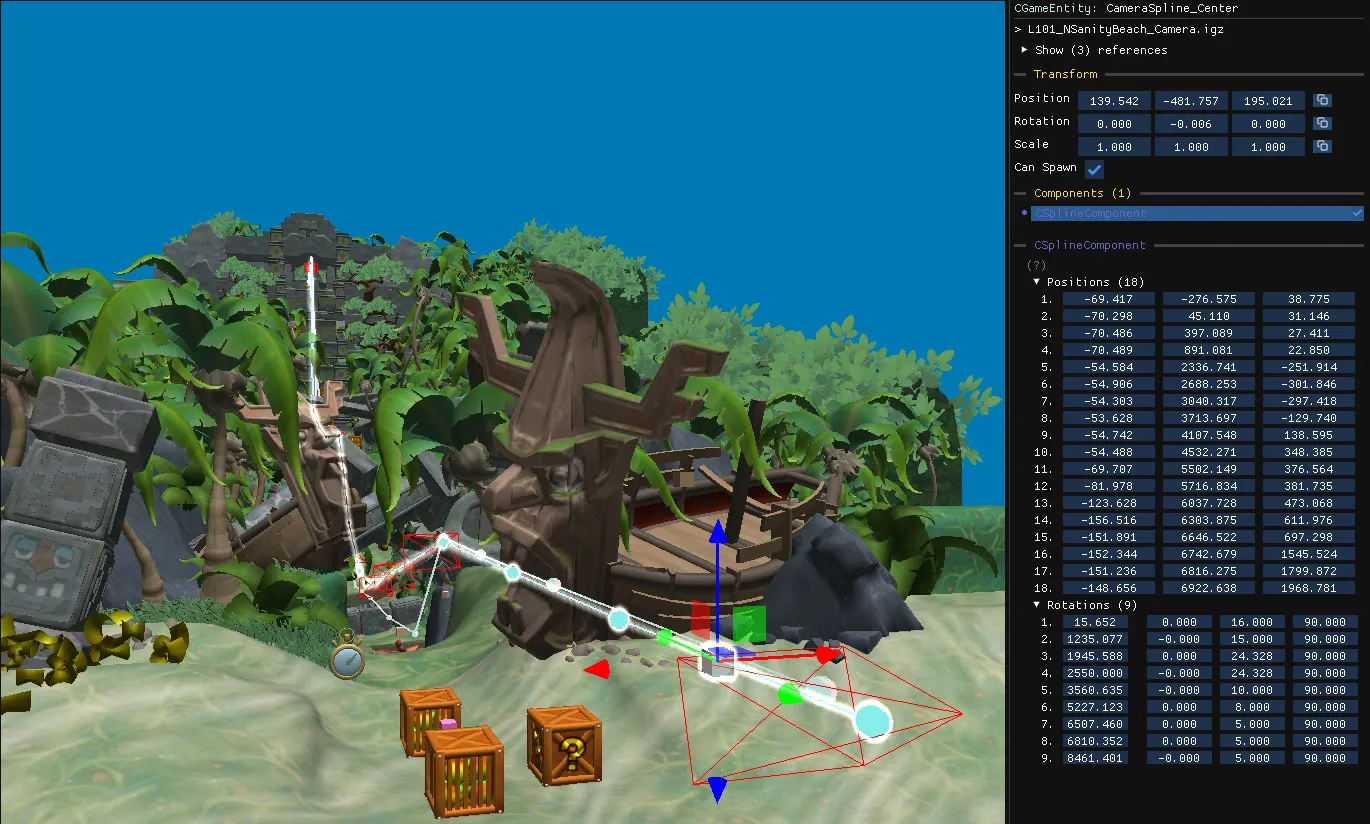
The spline panel
Section titled “The spline panel”The component shows up to four lists:
| List | Contents |
|---|---|
| Positions | The X, Y, Z position of each control point, relative to the spline entity. |
| Rotations | A distance along the spline, followed by the rotation in degrees at that distance. |
| Velocity | Speeds that define how fast objects move along the spline. |
| Markers | Distances along the spline that some entities use as start and end points. |
Control points are always visible in the 3D scene. Other objects are only drawn while their list is expanded.
For rotation keyframes, Preview shows the camera at that keyframe and Set from camera copies the editor camera’s current rotation into it, which is the quickest way to set up a camera path.
Panel controls
Section titled “Panel controls”- Edit values by clicking and dragging.
- Click an item to select it
- Shift+click to select a range
- Ctrl+click to add or remove one item.
- Del removes the selected items.
- Right-click to add new items.
- Double-click an item to focus it in the 3D scene.
3D controls
Section titled “3D controls”- Click a spline to select it with all of its control points.
- Click a control point again to select it alone.
- Shift+click to add or remove a control point from the selection.
- Move selected control points with the gizmos.
Spline cameras
Section titled “Spline cameras”New camera → Spline Camera... in the quick-access menu creates a camera with its own spline, with forward, sidescroll and vertical presets.
Focusing a spline camera selects its child path automatically, click it again to select the camera object individually.
Copies of a spline camera get their own spline, so editing one does not move the other.