
Object Library
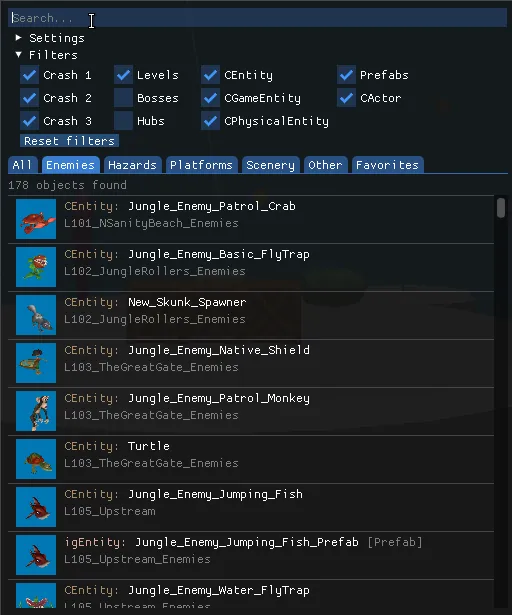
The Object Library lists the name of every object in the game with a preview image. Open it with Right-click → Object library.
First initialisation
Section titled “First initialisation”The first time you open the library, the editor scans every archive of the game to build the list and generate preview images. This takes 10 to 20 minutes and the editor window may look unresponsive during that time. Other applications are not affected, and you can open a second instance of the editor in the meantime.
Find an object
Section titled “Find an object”- Search through object names and file names.
- Sort by archive, object name or model.
- Filter by game (Crash 1, 2, 3), level type (Levels, Bosses, Hubs), object type and collision.
- Categories: All, Enemies, Hazards, Platforms, Scenery, Other and Favorites.
Each result shows its preview, its type and name, and the file it comes from. Hover a preview to enlarge it.
Use an object
Section titled “Use an object”- Click an entry to import it into the current level, at the spot the camera is aiming at.
- Right-click an entry to focus it in its original archive, or to add it to your favourites.
Add custom archives
Section titled “Add custom archives”Settings → Add custom folder scans a folder of custom .pak archives and adds their objects to the library. This is how you make CTR:NF assets available, for instance. Do not move the archives after the scan, or the library will not be able to import their objects anymore.
Clear library data
Section titled “Clear library data”Settings → Clear library data clears the object list. You can use it if there was an update to the object library, to remove custom folders, or if some previews are missing.