
Previews
Some file types open in a dedicated preview section.
Model previews
Section titled “Model previews”Model files, found in actors/ and models/, open in an interactive 3D preview.
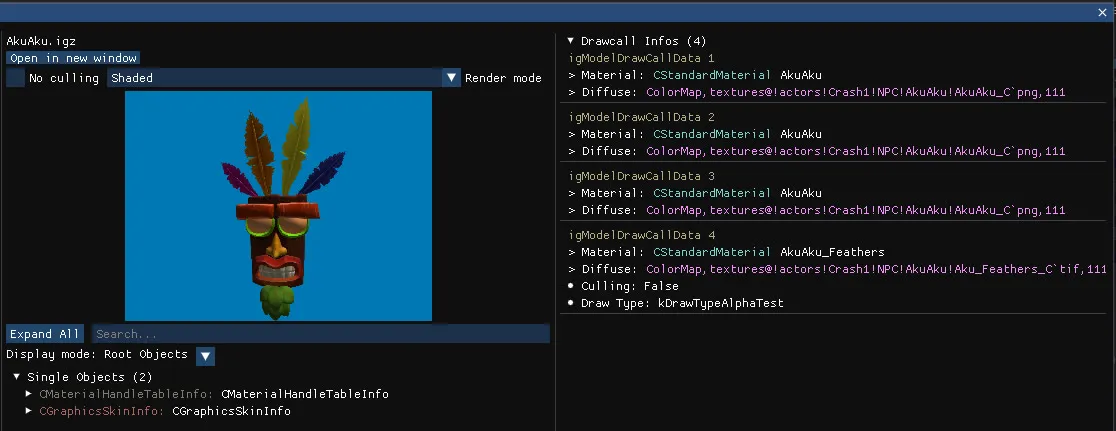
Render modes
Section titled “Render modes”| Mode | Shows |
|---|---|
| No culling | Disables culling for the model |
| Shaded | The default, with Phong lighting |
| Albedo | Only the albedo or diffuse texture |
| UV | The UV coordinates |
| Normal | The normals |
| Opacity | The alpha channel |
| Alpha Clip | The alpha clip threshold |
| Wireframe | Triangles as wireframes |
Drawcall infos
Section titled “Drawcall infos”When the file opens, the right panel lists every drawcall of the model. Each one shows three clickable entries that open the corresponding object or file: the drawcall object, the material file, and the material’s diffuse texture. Hovering a drawcall renders only its mesh and hides every other one, which is handy to find which part of a model uses which material.
Export to .gltf exports the model with its PBR textures. See Export to glTF.
Material previews
Section titled “Material previews”Material files, found in materialinstances/, list every material of the file in the right panel.
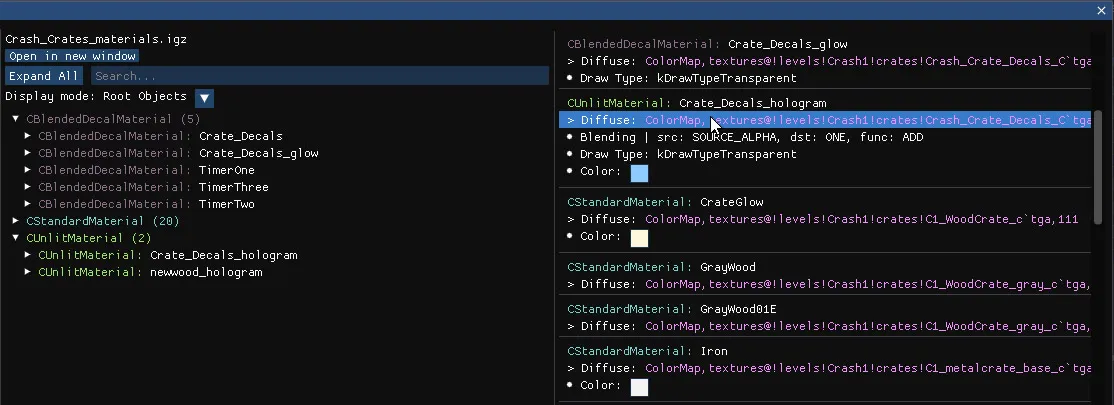
Each material shows the attributes that differ from their default values, such as culling, transparency and colour, and clickable references to its textures.
By default, only the diffuse texture is shown. Click Show all textures to see every texture referenced by a material. Hovering the name of a texture will show a small preview.
Texture previews
Section titled “Texture previews”Texture files, found in textures/, show an image preview.
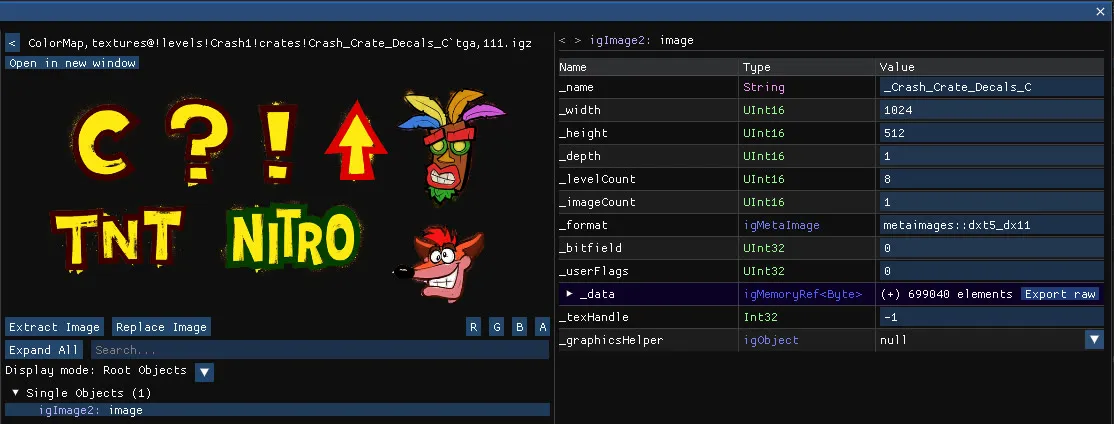
- Extract Image saves the image to disk.
- Replace Image imports a new image from the file explorer in place of the current one.
- R, G, B, A render only the selected channel.
- Textures that contain several images, or LOD levels, can be browsed image by image.
Swizzled textures from CTR:NF are displayed correctly.
Audio previews
Section titled “Audio previews”Audio files open an audio player. Every track can be extracted to an .mp3 file, and custom audio can be imported into .snd files, CSoundSample and CSubSound objects.
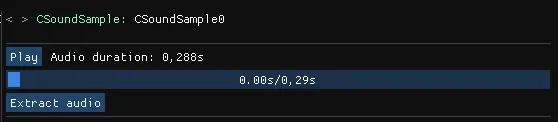
- For
CSoundSampleigz files (located insound_samples/), an audio player is available in the right panel to play the sound. - For
.sndfiles (located insound_streams/), the audio is played directly as the file is just a raw audio stream. - For
CAudioArchiveigz files (located insounds/banks/), eachCSoundobject in the file is listed in the right panel, along with its associatedCSubSoundplayable audio tracks. You can click on a track name to open the corresponding object and extract the audio.
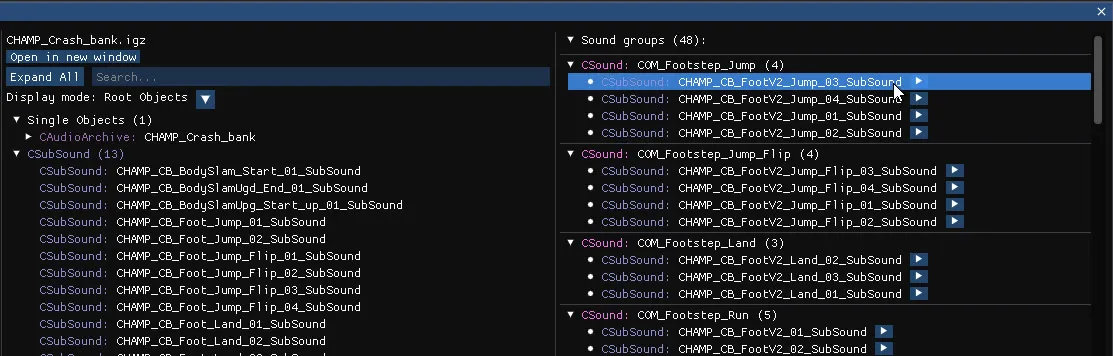
Automatically playing audio files is disabled by default but can be turned on in File -> Archive -> Auto-play audio