
The main menu
When you start Crash NST Maker you land on the main menu. It is split into three panels:
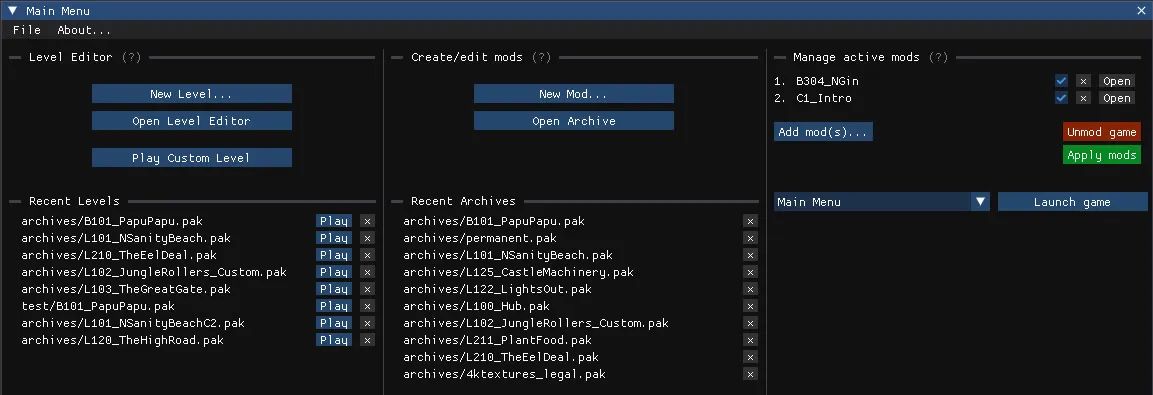
Level Editor (left panel)
Section titled “Level Editor (left panel)”Create and play custom levels.
- New Level… creates a level from scratch or duplicates an existing one. See Create a new level.
- Open Level Editor opens an existing level (original or custom) in the Level Editor.
- Play Custom Level launches the game directly into a custom level or hub. See Play a custom level.
- Recent Levels lists the levels you opened last. Click on a level to open it with the Level Editor, or click Play to launch it with the game.
Archive Editor (middle panel)
Section titled “Archive Editor (middle panel)”Create mods, browse game files, extract assets…
- New Mod… creates a new, empty archive.
- Open Archive Editor opens any archive in the Archive Editor.
- Recent Archives lists the archives you opened last. Click on an archive to open it with the Archive Editor.
Manage active mods (right panel)
Section titled “Manage active mods (right panel)”This is the Mod Manager: add mods, apply them to the game, revert them, and launch the game at any level, including the main menu, bosses and debug levels.
The File menu
Section titled “The File menu”The File menu at the top of the main menu holds application-wide options:
- Set game path: change the path to the game’s executable (
CrashBandicootNSaneTrilogy.exe) - Set steam path: change the path to steam’s executable (
steam.exe, only required for theskip steam popupoption). - Skip steam popup: skip the Steam confirmation popup that appears every time you launch a custom level.
Windows, tabs and docking
Section titled “Windows, tabs and docking”Each editor opens in its own window within the application. You can dock and group windows by dragging one window’s title bar onto another; the windows then appear as tabs, making it easy to switch between several open levels. Click the Home icon in the top-left corner to return to the main menu at any time.