
Object properties
The right-hand panel shows every editable property of the selected object.
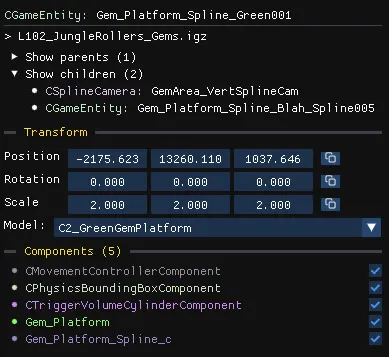
Header
Section titled “Header”- The first line shows the object’s type and name.
- The second line shows the file the object lives in. Click it to open the file in the archive editor.
- Show parents and Show children list the related objects, when any. Click one to focus it.
Transform
Section titled “Transform”Position, rotation (in degrees) and scale of the object. See Transform and gizmos for the editing tricks.
When the object has a model, a Model dropdown lists every model loaded across the open level editors, so you can swap it. Choose null to make the object invisible. The Open model file button opens the model in the archive editor.
Components
Section titled “Components”Components define the object’s behaviour, model, animations, sounds and properties.
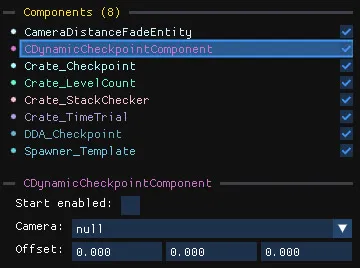
The list of components is at the top, the properties of the selected component below.
- Tick the checkbox on the right to enable or disable a component.
- Click a component to select/deselect it.
- Click and drag, or Shift+click, to select a range.
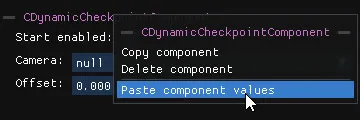
- Right-click a component to open its context menu (copy/paste/delete).
The most used components have a dedicated interface with readable names and inputs. Other components are still fully editable under Advanced properties, but might have unnamed parameters.
Clicking an object that the level editor cannot display focuses it in the archive editor, where every property is editable.
The Special components pages describe the components that have a dedicated interface, such as splines, trigger volumes, music and checkpoint text.