
Level Editor overview
The Level Editor can open any level of the trilogy, or a custom one, in a 3D scene view. You can move, copy, create and delete objects, edit their components, then launch the game to test the result in seconds.
Key features
Section titled “Key features”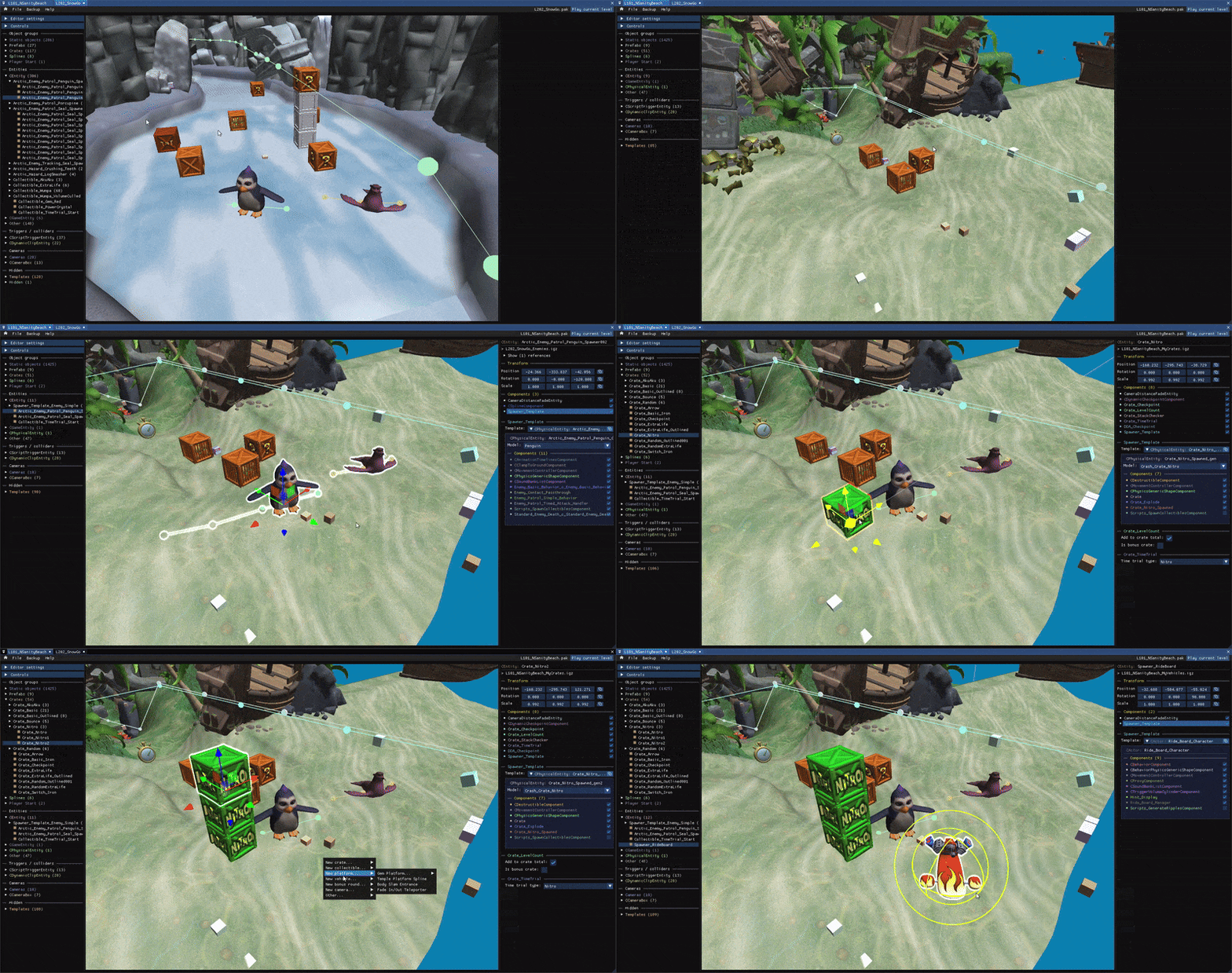
- Several levels at once. Click the Home icon or use
File → Open(Ctrl+O) to open another level while one is already open. Drag a window’s title onto another window’s title to group them as tabs. - Multi-selection. Hold Shift to select several objects, or drag a box in the scene.
- Copy and paste across levels. Ctrl+C / Ctrl+V works from one level editor to another, including from CTR:NF levels. See Copy and paste.
- Quick-access menu. Right-click to create crates, collectibles, platforms, vehicles, bonus rounds, cameras and more. See Quick-access menu.
- Object Library. Search every object of the game by name, category and level, with preview images, and import it with a click. See Object Library.
- Undo and redo for selection and transform changes.
- Export to glTF to open a level or a model in Blender. See Export to glTF.
Layout
Section titled “Layout”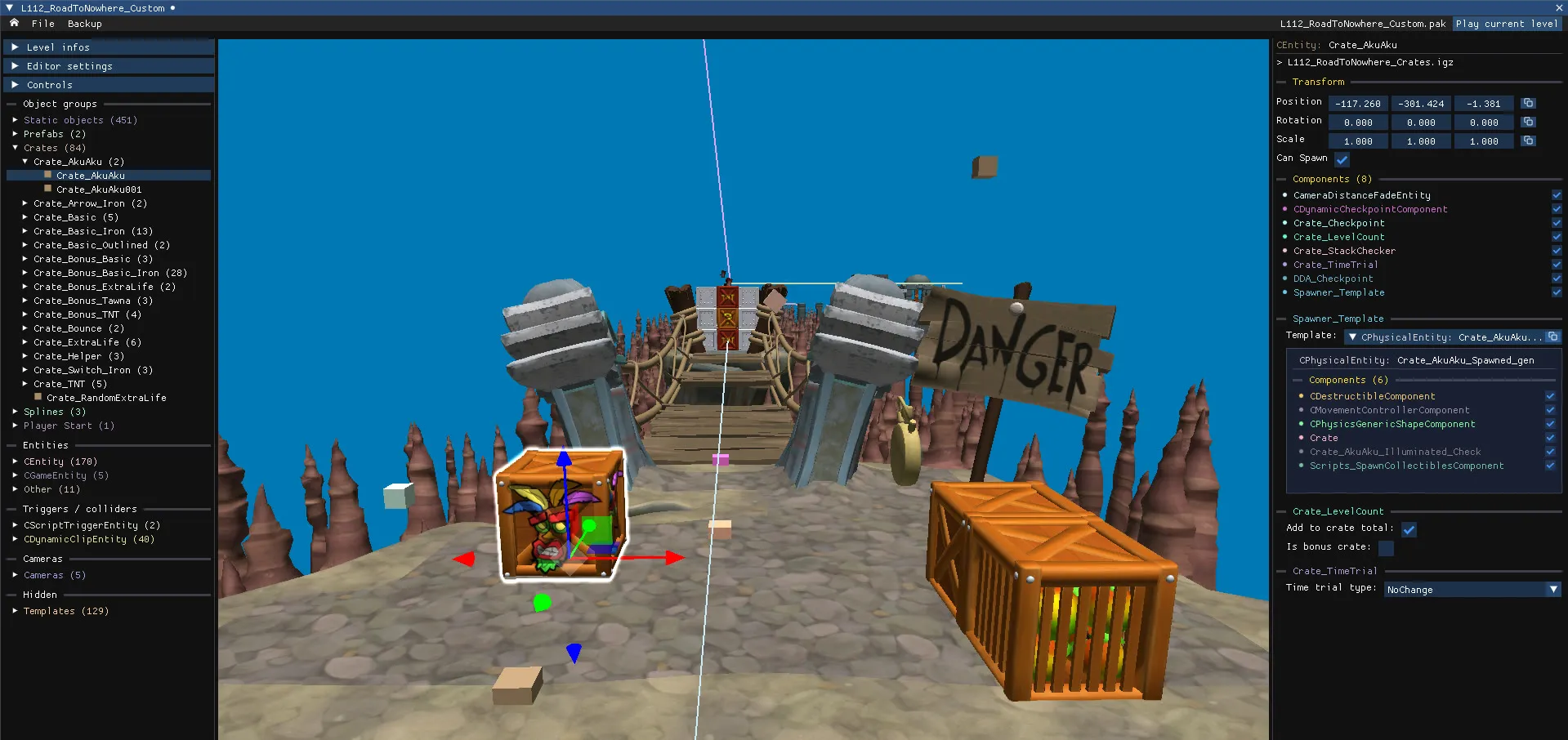
- Menu bar, top-left. The Home icon returns to the main menu.
Fileholds open, save, reload, compress, export and archive-level commands.Backupholds manual and automatic backups. - Left column. Three collapsible panels, Level settings, Editor settings and Controls, followed by the object tree that lists every object of the level grouped by type. A Collapse all button folds the tree.
- Scene view, center. The 3D view where you navigate, select and transform objects. The Camera layers dropdown in the top left chooses which categories of objects are drawn.
- Properties panel, right. Everything about the selected object: transform, model and components. See Object properties. The Play current level button sits in the top-right corner.
Original levels and custom levels
Section titled “Original levels and custom levels”You can open the original game levels, but the editor protects them: it never overwrites a game file unless you explicitly confirm it. Use File → Save as... (Ctrl+Shift+S) to turn an original level into a custom level saved elsewhere. Some options, such as the level settings, are only available for custom levels.
Supported games
Section titled “Supported games”The editor fully supports Crash Bandicoot N. Sane Trilogy (PC). It can also open levels from Crash Team Racing Nitro-Fueled (PS4) and copy their content into NST levels. See CTR:NF support.