
Archive manager
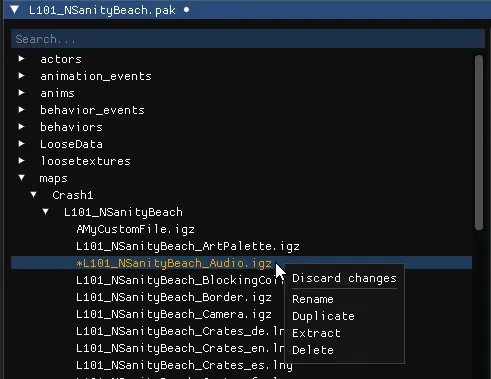
The left panel of the archive editor lists the files of the archive in their folders, with a search bar at the top. Files you modified are marked with an asterisk.
File actions
Section titled “File actions”Right-click a file to open its context menu:
| Entry | Effect |
|---|---|
| Include in package file | Whether the file should be loaded by the game and the level editor |
| Discard changes | Reverts every change made to the file. |
| Rename | Changes the file’s name. |
| Duplicate | Creates a copy of the file. |
| Extract | Uncompresses the file and saves it to disk. |
| Delete | Removes the file from the archive. Del does the same for the selected file. |
Right-click a folder to create new files and folders inside it, and right-click an empty archive to create its first file.
| Action | Shortcut |
|---|---|
| Save and overwrite the archive | Ctrl+S |
| Save to a new file | Ctrl+Shift+S |
| Open another archive | Ctrl+O |
File menu
Section titled “File menu”- File → Remove unused files removes the files that aren’t referenced by any object (reduce the archive size).
- File → Compress and save compresses every file in the archive (reduce the archive size).
Archive → Extract all filesextracts every file at once in folders respecting the file paths.Archive → Update level namesets a level archive up for use in a custom hub.Archive → Export level to .gltfexports the level’s models. See Export to glTF.
What is in an archive
Section titled “What is in an archive”| Folder | Contents |
|---|---|
maps/ |
The level files: entities, crates, cameras, collisions, lighting and more, edited in the IGZ editor |
actors/, models/ |
3D models, with a model preview |
materialinstances/ |
Materials, with a material preview |
textures/ |
Textures, with a texture preview |
sound_samples/, sound_streams/, sounds/banks/ |
Audio, with an audio player |