
Navigation and selection
The scene view is where you move around the level and pick the objects to edit. The Controls panel in the left column always shows the complete list of controls.
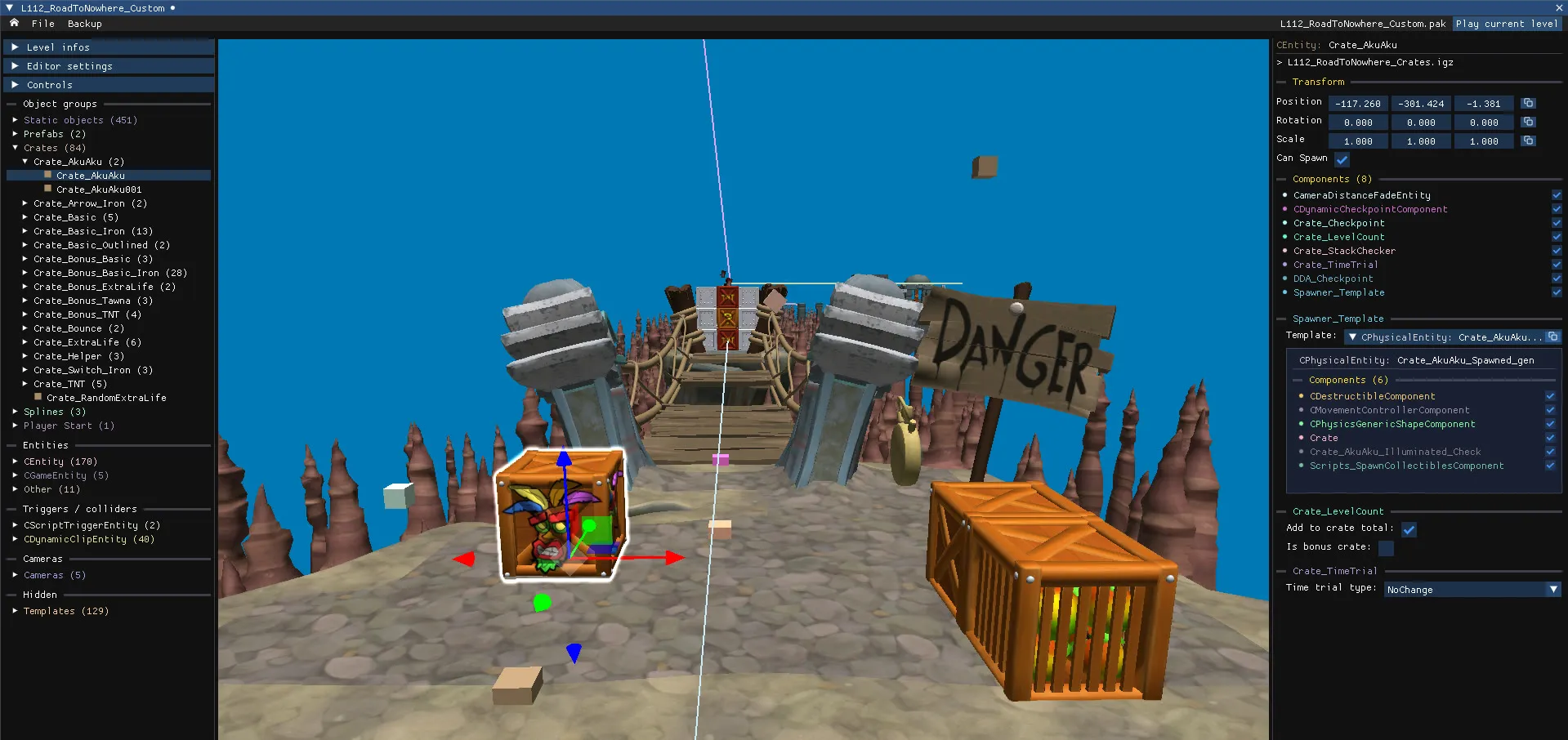
Camera
Section titled “Camera”| Action | Control |
|---|---|
| Move | W A S D |
| Rotate | Hold the right mouse button and move the mouse |
| Move faster | Hold Shift |
| Move down / up | Q / E |
| Zoom in / out | Mouse wheel |
Camera speed, mouse sensitivity and field of view are adjustable in Editor settings. With Gradual speed increase enabled, the camera accelerates the longer you keep moving.
A small dot is drawn at the centre of the view while the camera moves: it shows exactly where new objects will be created or pasted. When you reload a level (Ctrl+Shift+R), the camera goes back to where it was.
Select objects in the scene
Section titled “Select objects in the scene”| Action | Control |
|---|---|
| Select an object | Left click |
| Select its parent or children | Click the same object again. Works on prefabs, triggers, splines… |
| Add to or remove from the selection | Shift + left click |
| Box selection | Left click and drag. Hold Shift to add to the current selection |
| Select everything | Right-click, then Select All |
| Clear the selection | Escape |
Select objects from the tree
Section titled “Select objects from the tree”The object tree on the left lists every object in the level. Click an entry to select it, double-click to focus the camera on it. Hold Shift to select several entries.
Copy and paste
Section titled “Copy and paste”| Action | Shortcut |
|---|---|
| Copy the selection | Ctrl+C |
| Paste where the camera aims | Ctrl+V |
| Paste at the original position | Ctrl+Shift+V |
| Move the selection where the camera aims | Ctrl+Shift+X |
| Duplicate the selection | Ctrl+D, the same as copy then paste in place |
| Delete the selection | Del |
Copying works between any two level editors, even between different games: open the source level and the destination level in separate tabs or side by side, copy in one, paste in the other. Everything the objects need, models, textures, templates, splines, comes along. Objects are highlighted while they are being copied.
Pasted objects land where the central dot is aiming. The placement uses a raycast against the scene, so objects sit on top of the object that is currently being looked at, and pasting can collide with dynamic clips. Collectibles are pasted slightly above the ground so they do not sink into it.
Special cases
Section titled “Special cases”- Script triggers. Copying objects without their parent trigger adds the copies to the original trigger; copying objects together with their trigger creates a new trigger for the copies. See Script triggers.
- Prefabs. Clicking a prefab child once selects the whole instance (if it doesn’t have too many children), which you can copy as a group. See Prefab instances.
- Spawners and templates. Pasting a spawner copies its hidden template as well, and each copy gets its own template so that later edits do not leak between copies. See Spawner templates.
- Cameras and camera boxes can be copied like any other object. Spline cameras get their own copy of the spline.
- Between games. See CTR:NF support.