
Lighting and skybox
Two kinds of objects define how a level looks: one global object for the skybox and defaults, and any number of boxes that override the lighting locally.
WorldVisualData: skybox and defaults
Section titled “WorldVisualData: skybox and defaults”This object has no model/bounds, it applies to the entire level. It’s found in the Other group of the object tree next to the WorldInstance.
The CWorldVisualData object handles the skybox and the level background. Copy and paste it into another level to import that level’s sky.
It also holds the default lighting settings, used when the player is outside every visual data box. In practice these defaults are almost always overridden by the boxes described below.
VisualDataBox: local lighting
Section titled “VisualDataBox: local lighting”Found in the Lighting group, objects with a CVisualDataBoxComponent define a bounding box inside which custom lighting settings apply, overriding the defaults of CWorldVisualData.
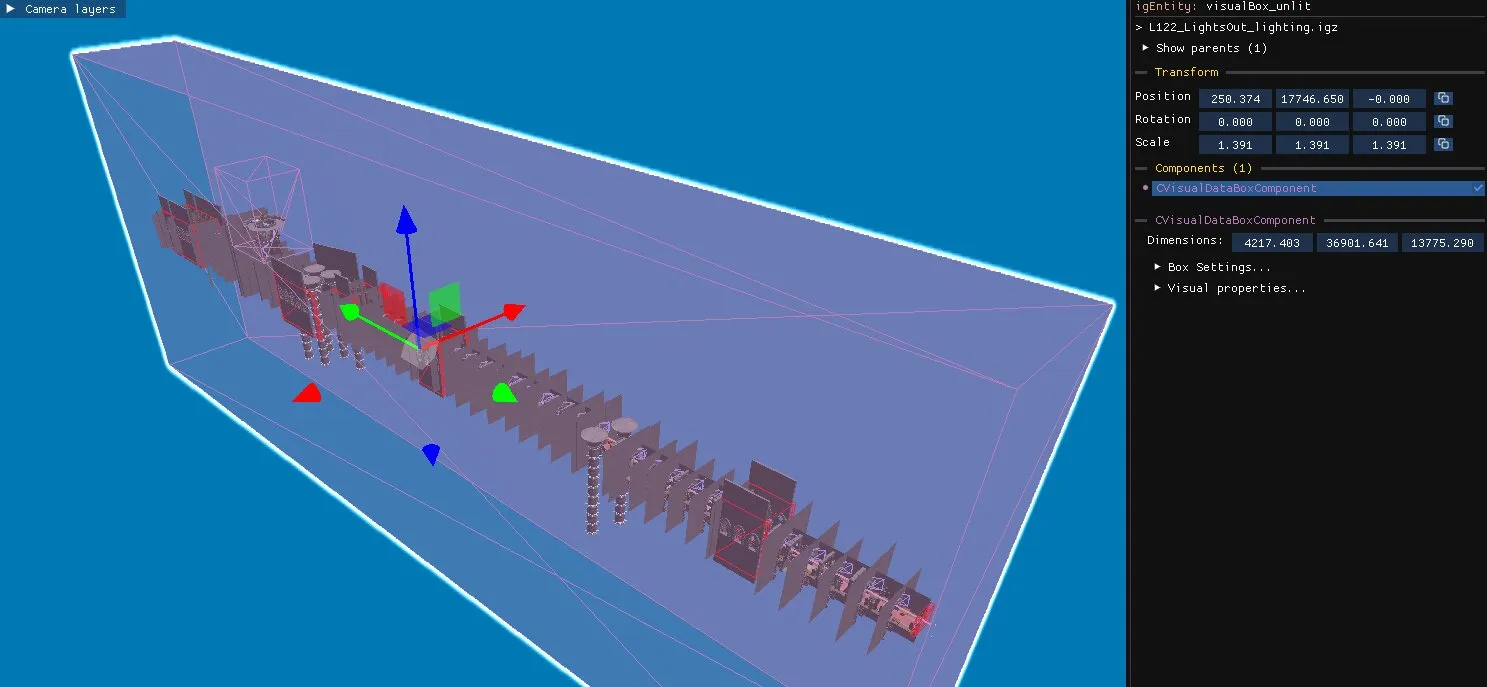
- The main lighting of a level is usually a single large box spanning the whole level.
- Smaller boxes override the main lighting in specific sections.
Enable the Visual Boxes camera layer to see their bounds, which you can move and scale like any object.
Importing lighting
Section titled “Importing lighting”- When you create a level from the empty template, the Lighting option imports the main lighting and skybox of the chosen level.
- To replace the lighting of an existing level, delete its
Lighting → MainLightingobject and itsOther → worldVisualData, then paste the ones from another level. This is also the first step of a CTR:NF conversion.
Light sources
Section titled “Light sources”Individual light sources live in the Lighting group of the object tree, next to the visual boxes that set the overall lighting of a level.
| Component | Light type | Camera layer |
|---|---|---|
CBoxLight |
Box light, lighting a rectangular volume | Box Lights |
CPointLight |
Point light, radiating from a point | Point Lights |
CTintSphere |
Tint sphere, tinting everything inside its radius | Tint Lights |
Enable the matching camera layer to see the bounds of every light of that type at once.